
moveMouse and dragMouse use human-like Bézier curves by default.
Click the mouse
Simulate mouse clicks at specific coordinates. You can select the button, click type (down, up, click), number of clicks, and optional modifier keys to hold.import Kernel from '@onkernel/sdk';
const kernel = new Kernel();
const kernelBrowser = await kernel.browsers.create();
// Basic left click at (100, 200)
await kernel.browsers.computer.clickMouse(kernelBrowser.session_id, {
x: 100,
y: 200,
});
// Double right-click while holding Shift
await kernel.browsers.computer.clickMouse(kernelBrowser.session_id, {
x: 100,
y: 200,
button: 'right',
click_type: 'click',
num_clicks: 2,
hold_keys: ['Shift'],
});
from kernel import Kernel

kernel = Kernel()
kernel_browser = kernel.browsers.create()

# Basic left click at (100, 200)
kernel.browsers.computer.click_mouse(
    id=kernel_browser.session_id,
    x=100,
    y=200,
)

# Double right-click while holding Shift
kernel.browsers.computer.click_mouse(
    id=kernel_browser.session_id,
    x=100,
    y=200,
    button="right",
    click_type="click",
    num_clicks=2,
    hold_keys=["Shift"],
)
# Click the mouse at coordinates (100, 200)
kernel browsers computer click-mouse <session id> --x 100 --y 200

# Double-click the right mouse button
kernel browsers computer click-mouse <session id> --x 100 --y 200 --num-clicks 2 --button right
Move the mouse
Move the cursor to specific screen coordinates. By default, the cursor follows a human-like Bezier curve path instead of teleporting instantly. You can control this withsmooth and duration_ms.
| Parameter | Type | Default | Description |
|---|---|---|---|
x | integer | — | X coordinate to move the cursor to |
y | integer | — | Y coordinate to move the cursor to |
smooth | boolean | true | Use human-like Bezier curve path instead of instant teleport |
duration_ms | integer | auto | Target duration in milliseconds for smooth movement (50–5000). Omit for automatic timing based on distance |
hold_keys | array | — | Modifier keys to hold during the move |
import Kernel from '@onkernel/sdk';

const kernel = new Kernel();
const kernelBrowser = await kernel.browsers.create();

// Human-like smooth movement (default)
await kernel.browsers.computer.moveMouse(kernelBrowser.session_id, {
  x: 500,
  y: 300,
});

// Smooth movement with custom duration
await kernel.browsers.computer.moveMouse(kernelBrowser.session_id, {
  x: 800,
  y: 600,
  smooth: true,
  duration_ms: 1500,
});

// Instant teleport (disable smooth)
await kernel.browsers.computer.moveMouse(kernelBrowser.session_id, {
  x: 100,
  y: 200,
  smooth: false,
});
from kernel import Kernel

kernel = Kernel()
kernel_browser = kernel.browsers.create()

# Human-like smooth movement (default)
kernel.browsers.computer.move_mouse(
    id=kernel_browser.session_id,
    x=500,
    y=300,
)

# Smooth movement with custom duration
kernel.browsers.computer.move_mouse(
    id=kernel_browser.session_id,
    x=800,
    y=600,
    smooth=True,
    duration_ms=1500,
)

# Instant teleport (disable smooth)
kernel.browsers.computer.move_mouse(
    id=kernel_browser.session_id,
    x=100,
    y=200,
    smooth=False,
)
# Smooth movement (default)
kernel browsers computer move-mouse <session id> --x 500 --y 300

# Instant teleport
kernel browsers computer move-mouse <session id> --x 500 --y 300 --smooth=false
Smooth vs instant movement
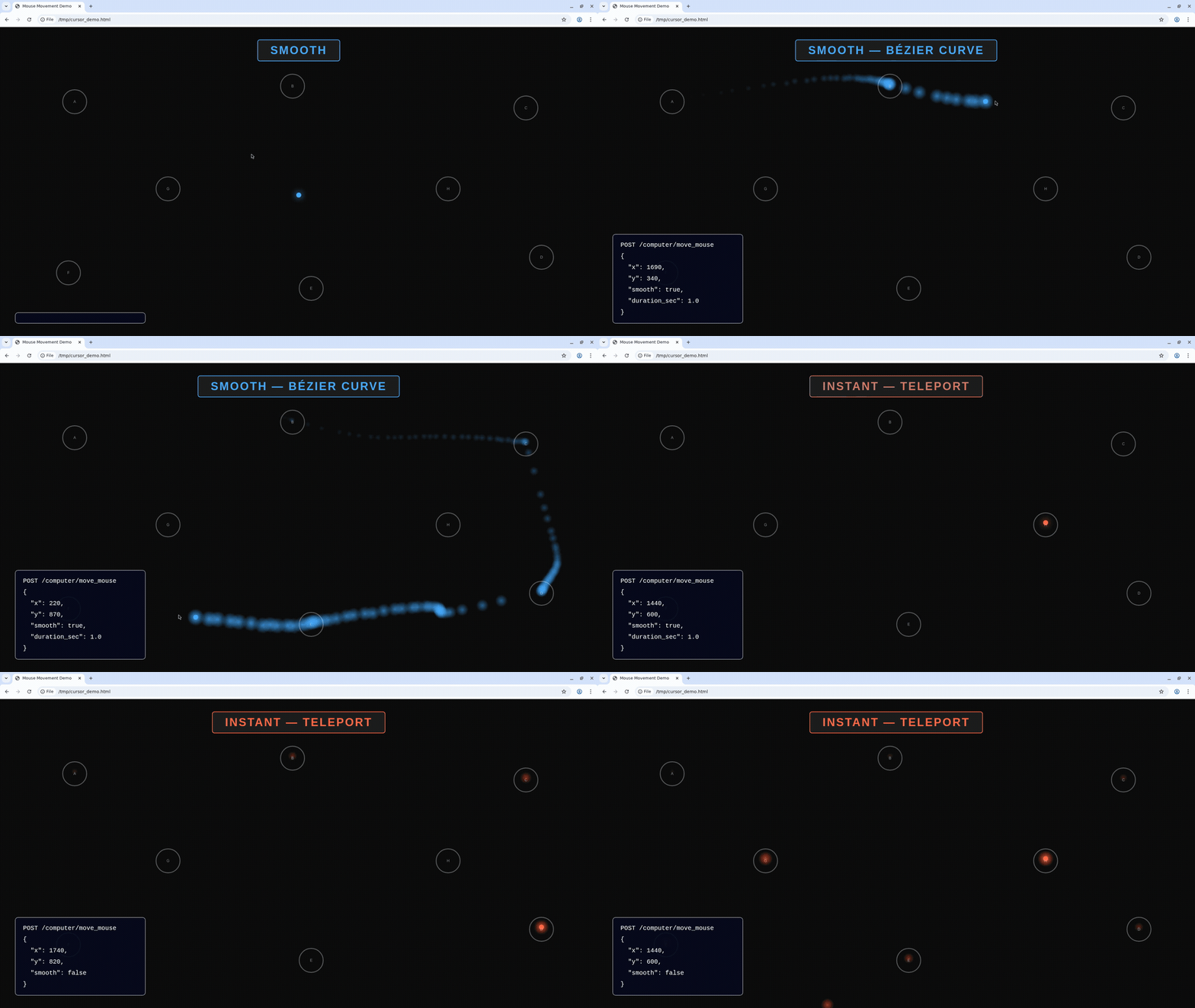
Blue = smooth Bezier path, Red = instant teleport
Take screenshots
Capture a full-screen PNG or a specific region.For WebGL and other animation-heavy pages,
captureScreenshot is noticeably faster than CDP’s Page.captureScreenshot. If you’re driving a computer-use loop off screenshots, prefer computer controls. GPU acceleration gives an additional small speedup for computer controls screenshots, but does not speed up CDP screenshots.import fs from 'fs';
import { Buffer } from 'buffer';
import Kernel from '@onkernel/sdk';
const kernel = new Kernel();
const kernelBrowser = await kernel.browsers.create();
// Full screenshot
{
const response = await kernel.browsers.computer.captureScreenshot(kernelBrowser.session_id);
const blob = await response.blob();
const buffer = Buffer.from(await blob.arrayBuffer());
fs.writeFileSync('screenshot.png', buffer);
}
// Region screenshot
{
const response = await kernel.browsers.computer.captureScreenshot(kernelBrowser.session_id, {
region: { x: 0, y: 0, width: 800, height: 600 },
});
const blob = await response.blob();
const buffer = Buffer.from(await blob.arrayBuffer());
fs.writeFileSync('region.png', buffer);
}
from kernel import Kernel

kernel = Kernel()
kernel_browser = kernel.browsers.create()

# Full screenshot
with open('screenshot.png', 'wb') as f:
    image_data = kernel.browsers.computer.capture_screenshot(id=kernel_browser.session_id)
    f.write(image_data.read())

# Region screenshot
with open('region.png', 'wb') as f:
    image_data = kernel.browsers.computer.capture_screenshot(
        id=kernel_browser.session_id,
        region={"x": 0, "y": 0, "width": 800, "height": 600},
    )
    f.write(image_data.read())
# Take a full screenshot
kernel browsers computer screenshot <session id> --to screenshot.png

# Take a screenshot of a specific region
kernel browsers computer screenshot <session id> --to region.png --x 0 --y 0 --width 800 --height 600
Type text
Type literal text on the host. By default, typing uses human-like variable timing: word-sized chunks, natural pauses at word and sentence boundaries, and optional realistic typos corrected with backspace. Setsmooth: false for xdotool typing with a fixed per-keystroke delay (delay, in ms) or instant input when delay is 0.
| Parameter | Type | Default | Description |
|---|---|---|---|
text | string | — | Text to type |
delay | integer | 0 | Fixed delay in milliseconds between keystrokes. Only used when smooth is false; ignored when smooth is true |
smooth | boolean | true | Human-like variable keystroke timing with word-boundary pauses (default, same idea as moveMouse / dragMouse) |
typo_chance | number | 0 | Per-character typo rate from 0–0.10 (capped; 0.10 ≈ 10% per character on average), corrected with backspace. Only applies when smooth is true (silently ignored when smooth is false). Typical values are 0.02–0.05 |
import Kernel from '@onkernel/sdk';

const kernel = new Kernel();
const kernelBrowser = await kernel.browsers.create();

// Human-like smooth typing (default — omit smooth or pass true)
await kernel.browsers.computer.typeText(kernelBrowser.session_id, {
  text: 'The quick brown fox jumps over the lazy dog.',
});

// Human-like with occasional typos (3% chance per character)
await kernel.browsers.computer.typeText(kernelBrowser.session_id, {
  text: 'The quick brown fox jumps over the lazy dog.',
  typo_chance: 0.03,
});

// Instant typing (all at once, no per-key delay)
await kernel.browsers.computer.typeText(kernelBrowser.session_id, {
  text: 'Hello, World!',
  smooth: false,
});

// Fixed delay between keystrokes (smooth off)
await kernel.browsers.computer.typeText(kernelBrowser.session_id, {
  text: 'Slow typing...',
  smooth: false,
  delay: 100,
});
from kernel import Kernel

kernel = Kernel()
kernel_browser = kernel.browsers.create()

# Human-like smooth typing (default — omit smooth or pass True)
kernel.browsers.computer.type_text(
    id=kernel_browser.session_id,
    text="The quick brown fox jumps over the lazy dog.",
)

# Human-like with occasional typos (3% chance per character)
kernel.browsers.computer.type_text(
    id=kernel_browser.session_id,
    text="The quick brown fox jumps over the lazy dog.",
    typo_chance=0.03,
)

# Instant typing (all at once, no per-key delay)
kernel.browsers.computer.type_text(
    id=kernel_browser.session_id,
    text="Hello, World!",
    smooth=False,
)

# Fixed delay between keystrokes (smooth off)
kernel.browsers.computer.type_text(
    id=kernel_browser.session_id,
    text="Slow typing...",
    smooth=False,
    delay=100,
)
# Human-like smooth typing (default)
kernel browsers computer type <session id> --text "The quick brown fox"

# Human-like with occasional typos
kernel browsers computer type <session id> --text "The quick brown fox" --typo-chance 0.03

# Instant typing (all at once)
kernel browsers computer type <session id> --text "Hello, World!" --smooth=false

# Fixed delay between keystrokes (smooth off)
kernel browsers computer type <session id> --text "Slow typing..." --smooth=false --delay 100
Smooth vs instant typing
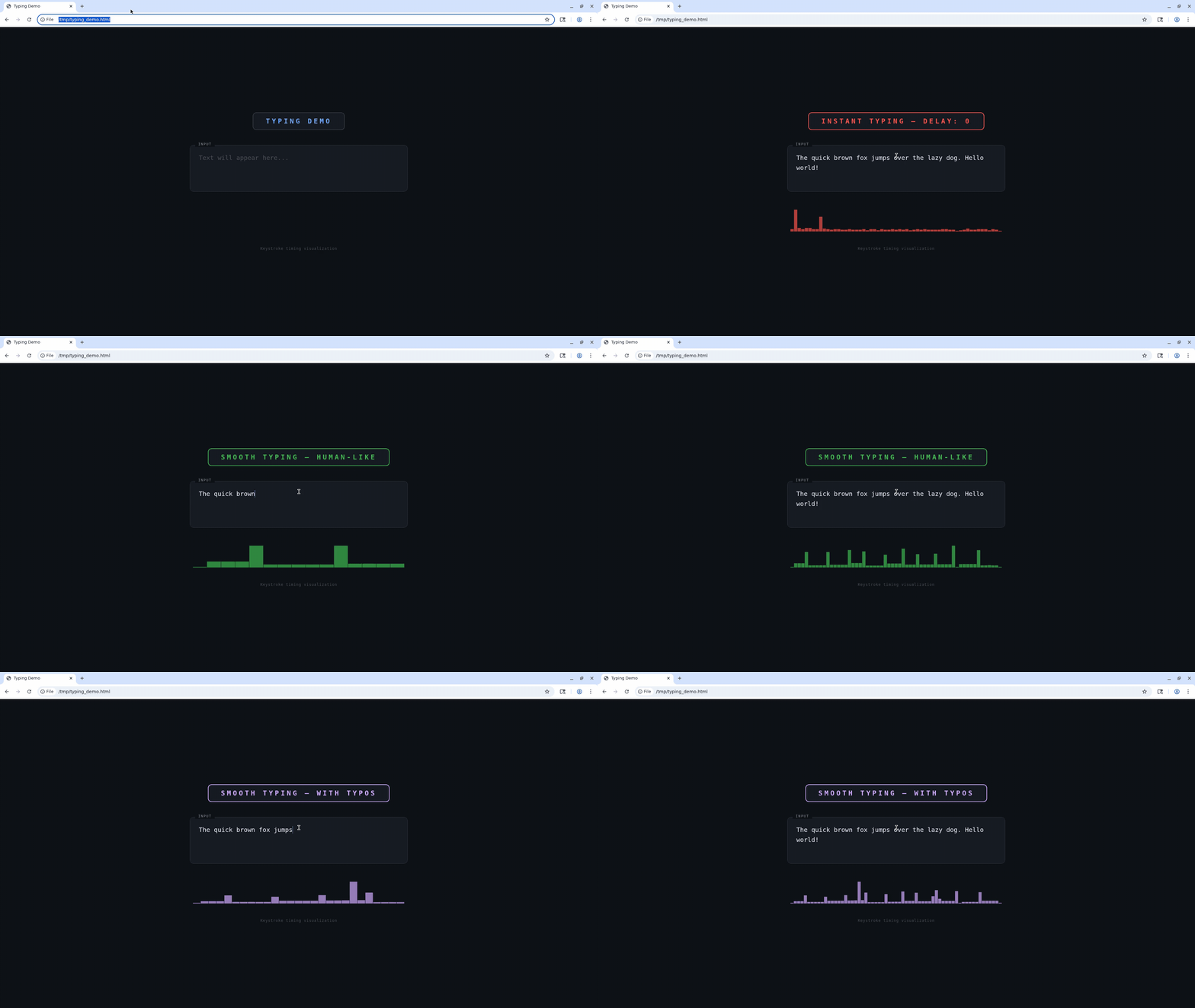
Instant typing (all at once) vs smooth human-like typing with variable delays and typo correction
Press keys
Press one or more key symbols (including combinations like “Ctrl+t” or “Ctrl+Shift+Tab”). Optionally hold modifiers and/or set a duration to hold keys down.import Kernel from '@onkernel/sdk';
const kernel = new Kernel();
const kernelBrowser = await kernel.browsers.create();
// Tap a key combination
await kernel.browsers.computer.pressKey(kernelBrowser.session_id, {
keys: ['Ctrl+t'],
});
// Hold keys for 250ms while also holding Alt
await kernel.browsers.computer.pressKey(kernelBrowser.session_id, {
keys: ['Ctrl+Shift+Tab'],
duration: 250,
hold_keys: ['Alt'],
});
from kernel import Kernel

kernel = Kernel()
kernel_browser = kernel.browsers.create()

# Tap a key combination
kernel.browsers.computer.press_key(
    id=kernel_browser.session_id,
    keys=["Ctrl+t"],
)

# Hold keys for 250ms while also holding Alt
kernel.browsers.computer.press_key(
    id=kernel_browser.session_id,
    keys=["Ctrl+Shift+Tab"],
    duration=250,
    hold_keys=["Alt"],
)
# Press one or more keys (repeatable --key)
kernel browsers computer press-key <session id> --key Ctrl+t

# Hold for a duration and add optional modifiers
kernel browsers computer press-key <session id> --key Ctrl+Shift+Tab --duration 250 --hold-key Alt
Scroll
Scroll the mouse wheel at a specific position. Positivedelta_y scrolls down; negative scrolls up. Positive delta_x scrolls right; negative scrolls left. Scroll amounts refer to “wheel units.”
import Kernel from '@onkernel/sdk';

const kernel = new Kernel();
const kernelBrowser = await kernel.browsers.create();

await kernel.browsers.computer.scroll(kernelBrowser.session_id, {
  x: 300,
  y: 400,
  delta_x: 0,
  delta_y: 120,
});
from kernel import Kernel

kernel = Kernel()
kernel_browser = kernel.browsers.create()

kernel.browsers.computer.scroll(
    id=kernel_browser.session_id,
    x=300,
    y=400,
    delta_x=0,
    delta_y=120,
)
# Scroll at a position
kernel browsers computer scroll <session id> --x 300 --y 400 --delta-y 120
Drag the mouse
Drag by pressing a button, moving along a path of points, then releasing. By default, drag movement uses human-like Bezier curves between waypoints. Setsmooth: false to use linear interpolation with steps_per_segment and step_delay_ms instead.
| Parameter | Type | Default | Description |
|---|---|---|---|
path | array | — | Ordered list of [x, y] coordinate pairs to move through (minimum 2 points) |
button | string | left | Mouse button: left, middle, or right |
smooth | boolean | true | Use human-like Bezier curves between waypoints. When true, steps_per_segment and step_delay_ms are ignored |
duration_ms | integer | auto | Target duration in milliseconds for the entire drag when smooth=true (50–10000). Omit for automatic timing based on total path length |
delay | integer | 0 | Delay in milliseconds between button down and starting to move |
steps_per_segment | integer | 10 | Number of interpolation steps per path segment (only when smooth=false) |
step_delay_ms | integer | 50 | Delay in milliseconds between steps (only when smooth=false) |
hold_keys | array | — | Modifier keys to hold during the drag |
Smooth vs linear drag
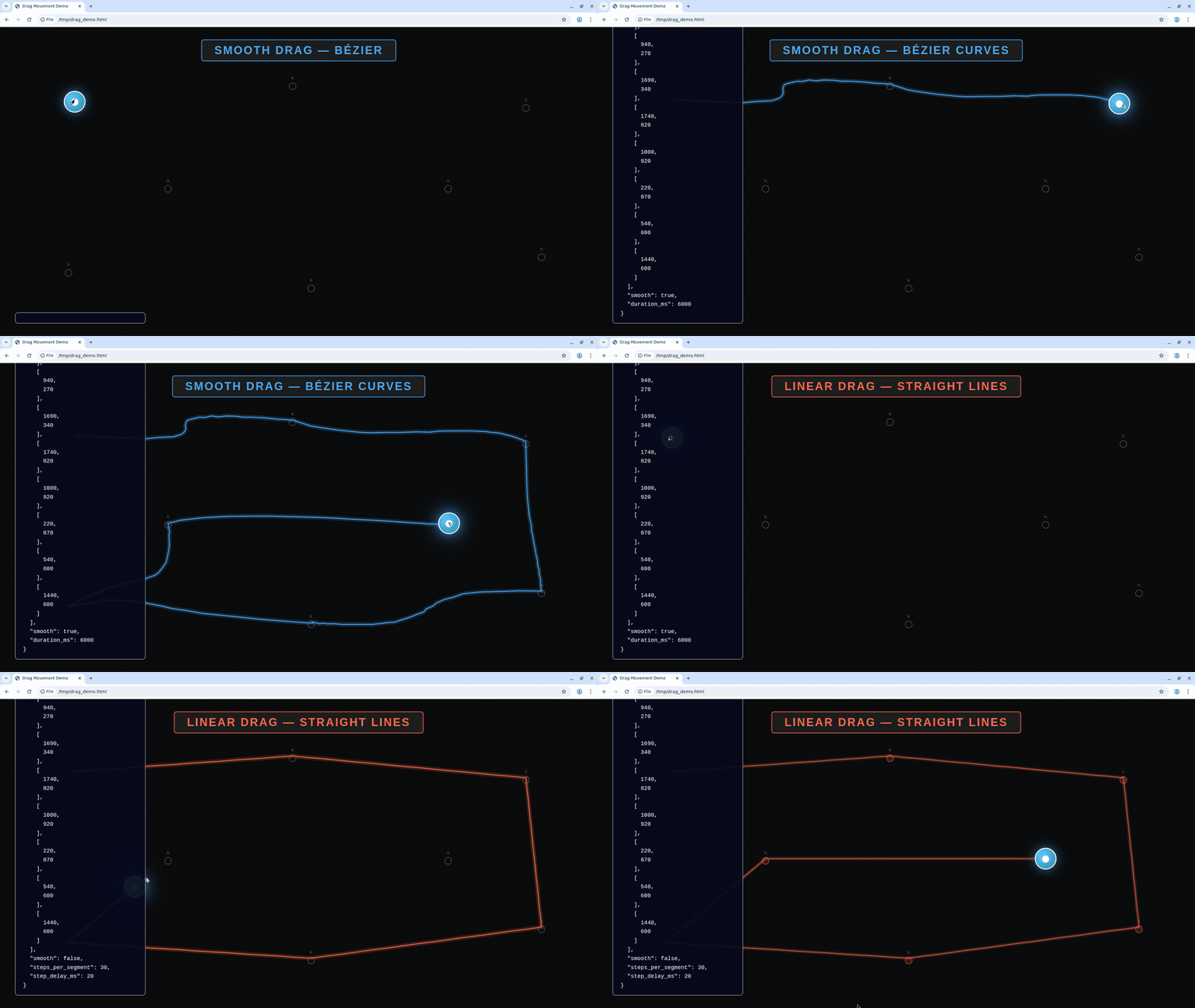
Blue = smooth Bezier curves, Red = linear interpolation
import Kernel from '@onkernel/sdk';

const kernel = new Kernel();
const kernelBrowser = await kernel.browsers.create();

// Human-like smooth drag (default)
await kernel.browsers.computer.dragMouse(kernelBrowser.session_id, {
  path: [
    [100, 200],
    [400, 350],
    [700, 200],
  ],
});

// Smooth drag with custom duration
await kernel.browsers.computer.dragMouse(kernelBrowser.session_id, {
  path: [
    [100, 200],
    [400, 350],
    [700, 200],
  ],
  smooth: true,
  duration_ms: 2000,
});

// Linear interpolation drag (legacy behavior)
await kernel.browsers.computer.dragMouse(kernelBrowser.session_id, {
  path: [
    [100, 200],
    [400, 350],
    [700, 200],
  ],
  smooth: false,
  steps_per_segment: 10,
  step_delay_ms: 50,
});
from kernel import Kernel

kernel = Kernel()
kernel_browser = kernel.browsers.create()

# Human-like smooth drag (default)
kernel.browsers.computer.drag_mouse(
    id=kernel_browser.session_id,
    path=[[100, 200], [400, 350], [700, 200]],
)

# Smooth drag with custom duration
kernel.browsers.computer.drag_mouse(
    id=kernel_browser.session_id,
    path=[[100, 200], [400, 350], [700, 200]],
    smooth=True,
    duration_ms=2000,
)

# Linear interpolation drag (legacy behavior)
kernel.browsers.computer.drag_mouse(
    id=kernel_browser.session_id,
    path=[[100, 200], [400, 350], [700, 200]],
    smooth=False,
    steps_per_segment=10,
    step_delay_ms=50,
)
# Smooth drag (default)
kernel browsers computer drag-mouse <session id> \
  --point 100,200 \
  --point 400,350 \
  --point 700,200

# Linear interpolation drag
kernel browsers computer drag-mouse <session id> \
  --point 100,200 \
  --point 400,350 \
  --point 700,200 \
  --smooth=false \
  --steps-per-segment 10 \
  --step-delay-ms 50